Making Windows less painful
Table of Contents
Working on windows can be a painful experience after coming from a custom linux setup. In the words of christitustech, “It’s as if they designed everything while they were on drugs”. In this post I’m going to go over some of the tools to setup on a fresh windows install to improve the experience.
Installing a package manager - Winget
On a fresh windows 11 enterprise install the system looks clean and minimal (the way it should be). There are a few package managers for windows and microsoft finally has its own, winget, something (li|u)nix users have enjoyed for decades. I’m going to install both winget and chocolatey since that will cover most needs. Winget being an offical Microsft tool, there is no simple way to install it on the command line (and I’m not going to download windows store). Asheroto has a nice powershell script on powershell gallery that gets the job done.
Running powershell as admin:
PS> Install-Script winget-install -Force
PS> winget-install
Installing Chocolatey
Choco is an another open source package manager for windows. It’s been around since around 2011 and it’ll add more coverage to apps we may need.
check the sources and read the scripts to make sure you know where the packages you’re installing are coming from.
Run as admin to check if the execution policy is restricted.
PS> Get-ExecutionPolicy
Restricted
And then make the change to continue the installation. I used AllSigned for more “security” according to the docs.
PS> Set-ExecutionPolicy AllSigned
And finally install Choco
PS> Set-ExecutionPolicy Bypass -Scope Process -Force; [System.Net.ServicePointManager]::SecurityProtocol = [System.Net.ServicePointManager]::SecurityProtocol -bor 3072; iex ((New-Object System.Net.WebClient).DownloadString('https://community.chocolatey.org/install.ps1'))
Enabling SSH server
In some cases it might be more comfortable to work with powershell over ssh from a familiar (li|u)nix environment. It does require using the latest powershell version 7 which I go into in this post.
Improving PSreadline
Readline provides editing and history capability on the command line and by default it is not configured (sanely). We can check the current keybinds with:
PS> Get-PSReadLineKeyHandler
For the typical emacs mode which provides ctrl-a begining of the line, ctrl-e end of line, ctrl-p/ctrl-n previous and next history, etc.:
PS> Set-PSReadLineOption -EditMode Emacs
We can even do vi mode
PS> Set-PSReadLineOption -EditMode vi
Add one of these to your $PROFILE config to load for each new session (using neovim, or whatever text editor you like):
PS> New-Item $PROFILE
PS> nvim $PROFILE
Zoxide
 zoxide is a smart cd command. It behaves like the classic jump tools we’ve had in the past but better. It learns which directories you most frequently use which allows you to easly jump around the shell.
PS> winget install ajeetdsouza.zoxide
Add this to the end of your $PROFILE:
# End of your profile
Invoke-Expression (& { (zoxide init powershell | Out-String) })
PSFzf
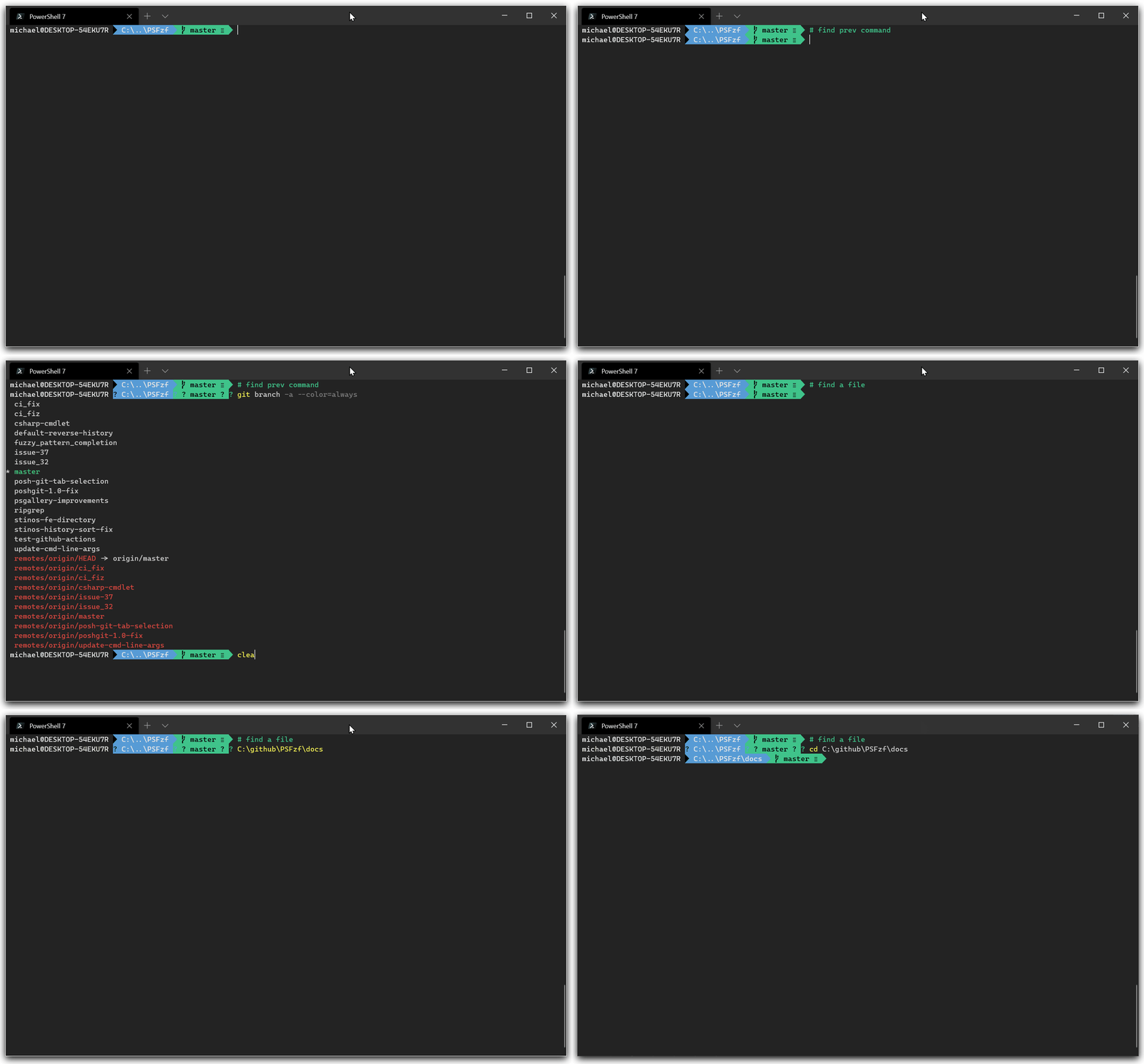 fzf is one of the best command line fuzzy finders.
PS> winget install fzf
And install the PSFzf module from powershell gallery:
PS> Install-Module -Name PSFzf -RequiredVersion 2.6.1

# Add the lines below to your $PROFILE
# replace 'Ctrl+t' and 'Ctrl+r' with your preferred bindings:
Set-PsFzfOption -PSReadlineChordProvider 'Ctrl+t' -PSReadlineChordReverseHistory 'Ctrl+r'
FD
Can’t forget about fd an easy to use, sane find command.
winget install sharkdp.fd
Key Repeat delay
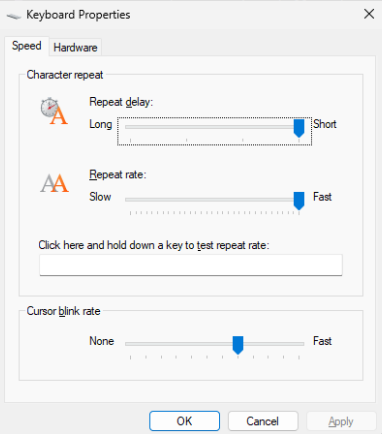
The key repeat delay in windows is really long even on the shortest setting, so I needed to do a regedit hack to fix it. This will make using vim and vim-like tools more pleasant.
Komorebi - window management
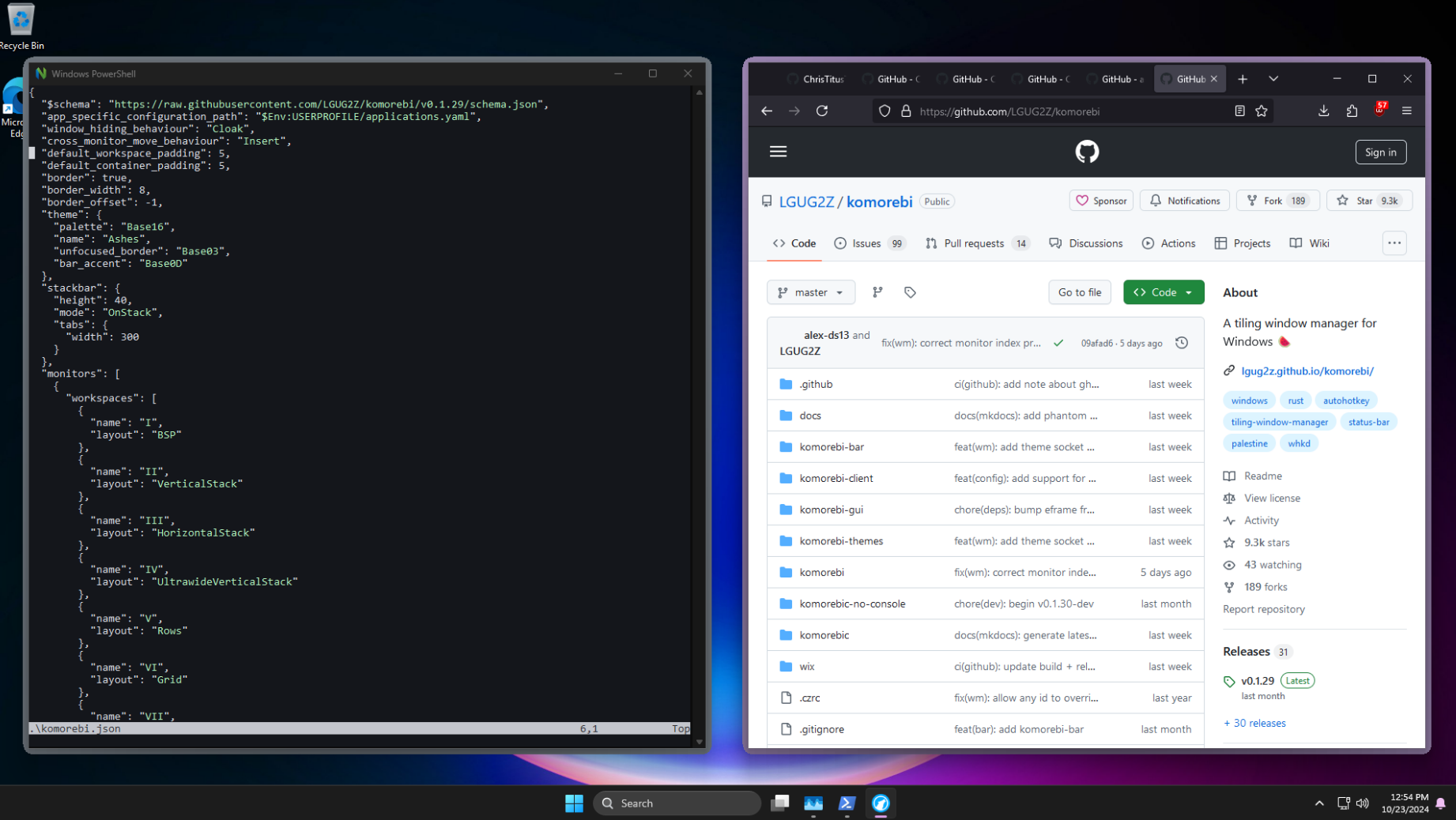 Komorebi is a decent tiling window manager for Windows. I personally use tabbed windows (a dozen browser windows) more than tiling on my linux machine, but I also mainly like apps opening full screen and having simple, modifiable hotkeys to control them. Another great feature is multi monitor support. By default Windows will change to another workspace for an entire multi monitor setup. Komorebi allows changing to a different workspace on a single monitor, without changing the others.
To get started it is recommended to enable long path support (run with admin priv).
PS> Set-ItemProperty 'HKLM:\SYSTEM\CurrentControlSet\Control\FileSystem' -Name 'LongPathsEnabled' -Value 1
And I’ll be installing with winget:
PS> winget install LGUG2Z.komorebi
PS> winget install LGUG2Z.whkd
Then running:
komorebic quickstart
komorebic start --whkd --bar
Will download sample configs into the $env:USERPROFILE (Write-Host $env:USERPROFILE to see it) directory and start the komorebi client.
The komorebi.json file has all the config details like padding, border and workspace layouts. By default the config showcases each layout on different workspaces, so change them all to the layout you prefer. The keybind config (whkdrc) should be in the userprofile .config directory, with some okay defaults. I prefer a simpler alt + f : komorebic toggle-monocle to toggle full screen though.
Mouse hover
One last change for window management is focusing a window on mouse hover. If I have multiple windows and a terminal, I want to be able to start typing on mouse hover without having to click : Control panel > Ease Of Access > Make the mouse easier to use.
Really though what I want is a focus on hover, not a bring to front, I just haven’t gotten that far yet.
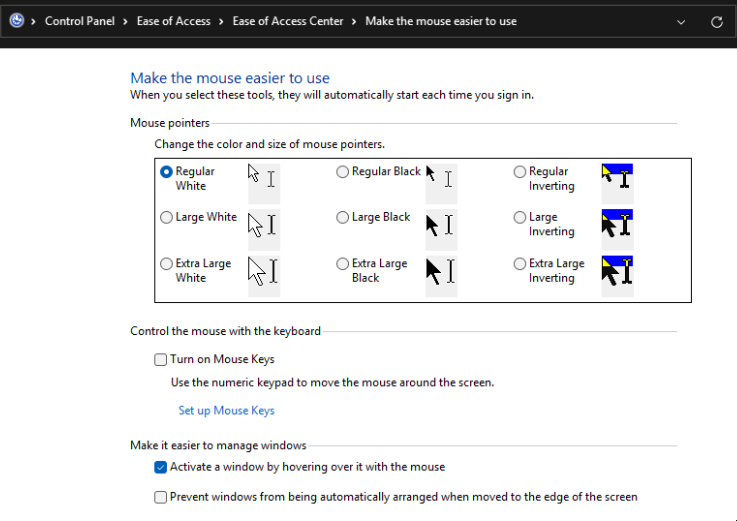
Select
active a window by hovering over it with the mouse